Hand tracking
Aim with your hand and pinch to select. You can switch pinch input on or off separately.
 ForgePlayVP
Mac 2.2.0 (build 8) is available. ForgePlayVP is being prepared for App Store review.
FORGEPLAYVP / APPLE VISION PRO
Play compatible Steam VR games on Apple Vision Pro, powered by your Apple Silicon Mac—without a Windows PC. Look around the game world and use hand tracking or a gamepad, depending on the game’s controls.

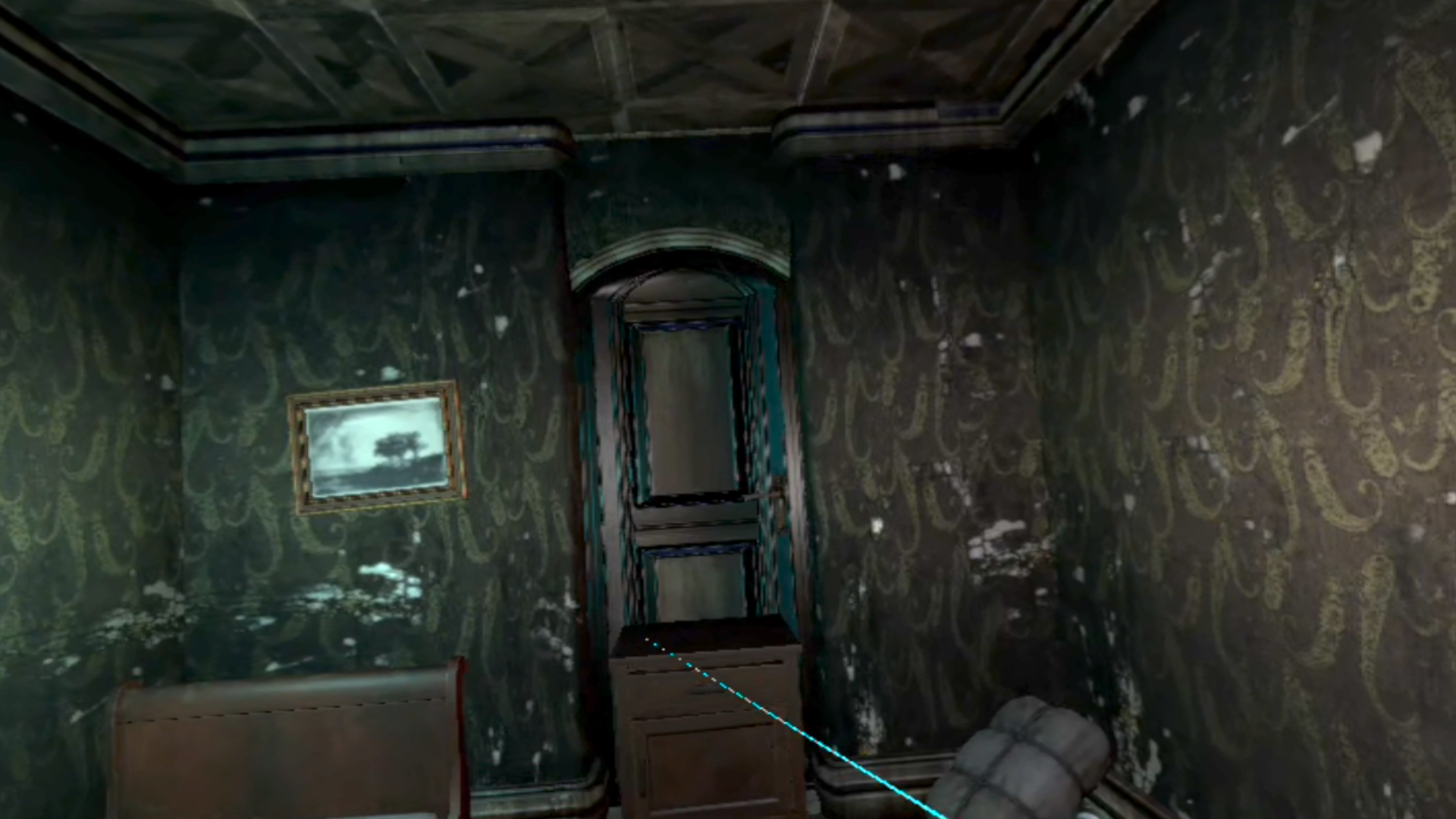
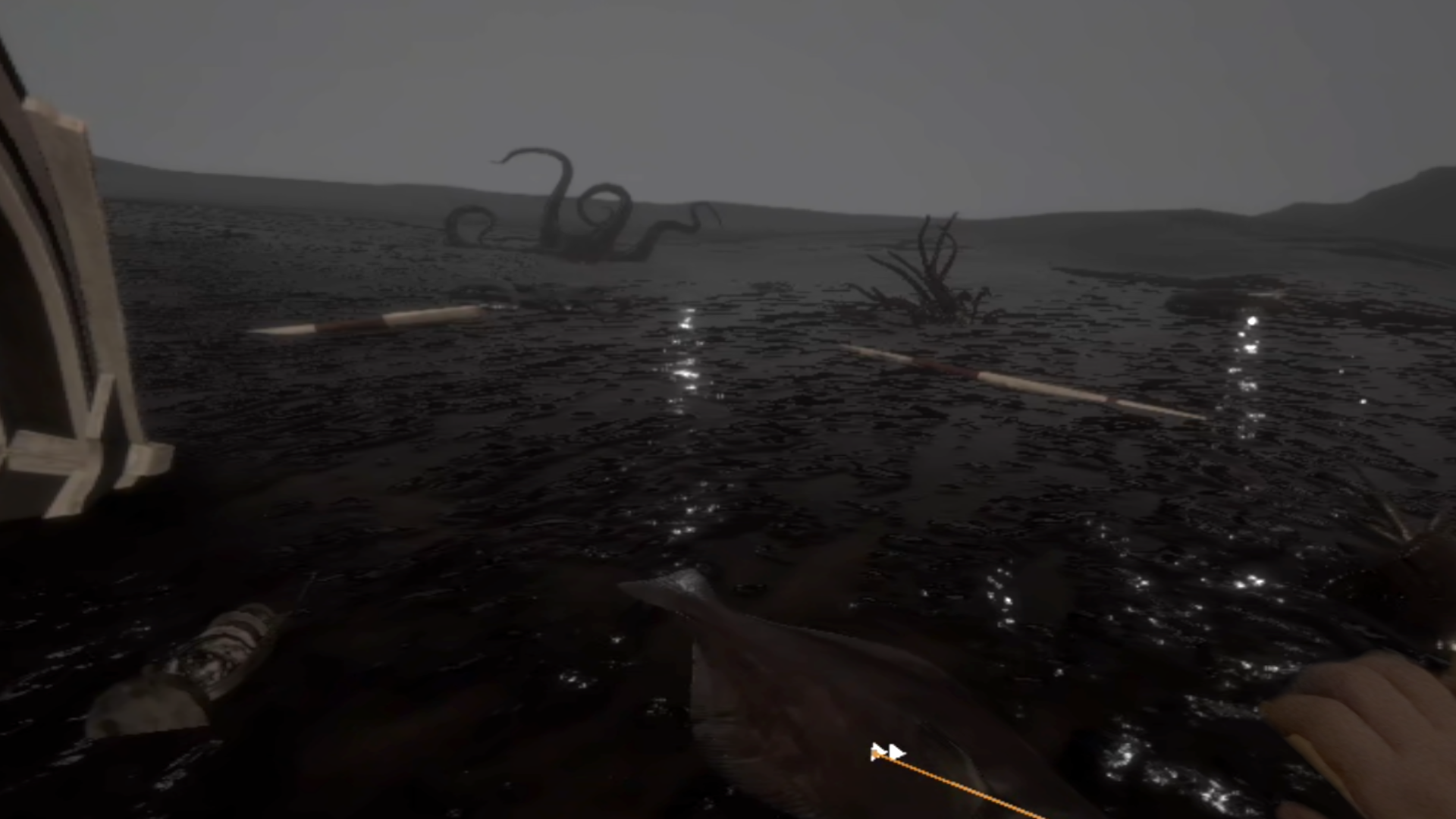
Dagon runs in VR mode on the Mac while Vision Pro handles the immersive view, hand pointing and pinch selection. These images were captured during an actual headset play session.

HAND TRACKING
Raise your hand and aim: the game's pointer follows your hand direction. Bring your thumb and index finger together to select. Turn your head to look around the game world.
Choose hand tracking, a gamepad, or both. Pick the option that matches the controls your game supports.
Aim with your hand and pinch to select. You can switch pinch input on or off separately.
Use an Xbox-style controller or DualSense. Choose whether it connects to the Mac or Vision Pro.
Use hand tracking and a gamepad together, according to the controls your game supports.
Controls vary by game. A standard gamepad does not replace every VR motion-controller action.
ForgePlay runs Windows VR games on your Mac. ForgePlayVP receives the game’s video and audio on Vision Pro and sends head, hand and gamepad input back to the Mac.
Hear the game on Vision Pro. Turn on the microphone when you want to send your voice to the game on your connected Mac.
Select your Mac and enter its pairing code the first time. Later connections use the saved device information.
Install ForgePlay on Mac and ForgePlayVP on Vision Pro. For your first setup, we recommend preparing Steam and a compatible VR game in ForgePlay’s Mac view. You can also create a Steam environment in the VR view.
Close Steam and games running on the Mac, then choose VR in the launcher. Use Steam setup to connect your existing environment. In Devices & Input, choose hands, gamepad, or both, and where the gamepad is connected.
On the same local network, connect Mac Virtual Display. In the Mac’s VR start view, prepare the Vision Pro connection. In ForgePlayVP, select that Mac and enter the code shown on it. Keep both connections active.
Choose Launch Steam in the Mac’s VR view. Start a VR game in VR mode from Steam, then tap ‘Open VR game screen’ on Vision Pro. You can open it while the game is waiting for a headset.
Requires ForgePlay on an Apple Silicon Mac and ForgePlayVP on Apple Vision Pro, with macOS 27 or later and visionOS 27 or later. Use a compatible Windows VR game from Steam and keep Mac Virtual Display connected during play. This does not convert ordinary games into VR games.
See how to startGame shown: Dagon. Images are supplied captures from actual headset play. The game is not included. Game content and trademarks belong to their respective owners; their appearance does not imply an official partnership.